Creating a YouTube video does not always require a professional microphone, a recording studio, or expensive audio equipment. AI voiceover tools can convert written text into spoken narration, helping beginners create tutorials, educational videos, product explainers, and short-form content.
If you prefer not to record your own voice, text-to-speech technology offers a practical alternative. You can write a script, generate narration, combine it with screen recordings, and edit the finished video using a video editor.
However, a good AI voiceover involves more than clicking a generate button. You need a clear script, natural pronunciation, appropriate pacing, suitable visuals, and permission to use the audio for your intended purpose.
In this guide, you will learn how to create AI voiceovers for YouTube videos for free, compare useful tools, improve voice quality, and avoid common mistakes when preparing videos for publication.
What Is an AI Voiceover?
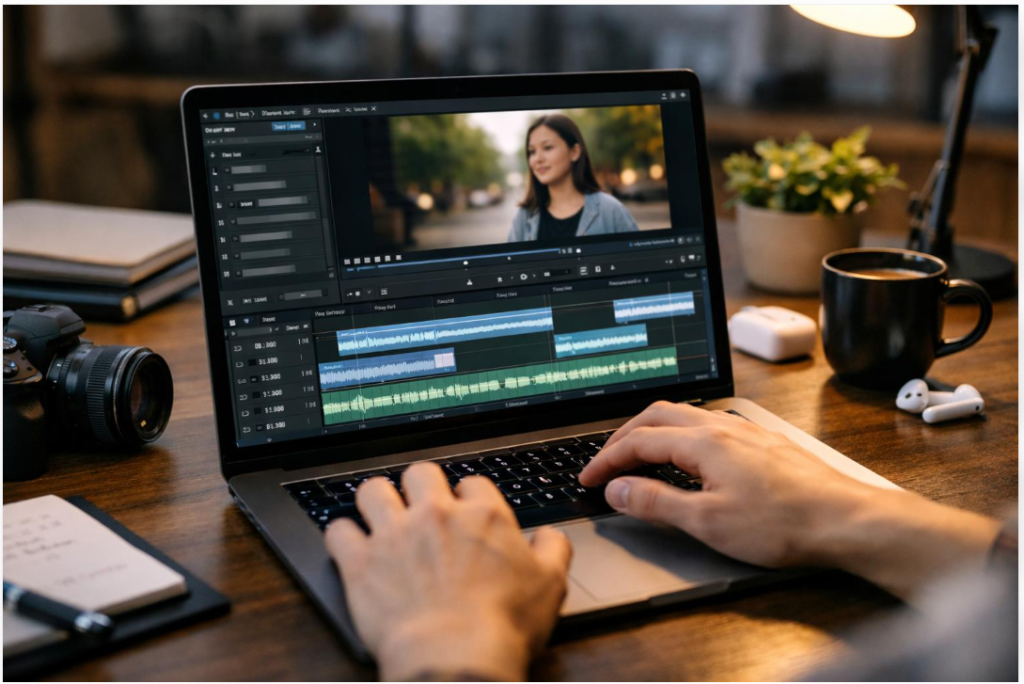
An AI voiceover is spoken audio generated from written text using artificial intelligence. This process is commonly known as text-to-speech, or TTS.
For example, imagine you want to publish a tutorial explaining how to use an AI writing tool. You can prepare the explanation as a script, enter it into a text-to-speech tool, select a voice, and generate the narration.
You can then place that audio over a screen recording that demonstrates the steps.
AI voiceovers are useful for:
- YouTube tutorials and educational videos
- YouTube Shorts and other short-form content
- Software demonstrations
- Product explainers
- Language-learning videos
- Presentation and training videos
The quality depends on the selected tool, supported language, script, and voice settings. Some generated voices sound natural, while others may mispronounce names or produce awkward pauses.
Best AI Voiceover Tools to Try for Free
Before choosing a tool, consider your main requirement. You may need natural narration, Urdu language support, a simple editing workflow, or the ability to download audio.
The following tools are useful starting points. Their free features, regional availability, and usage permissions can change, so verify the current conditions before creating a complete project.
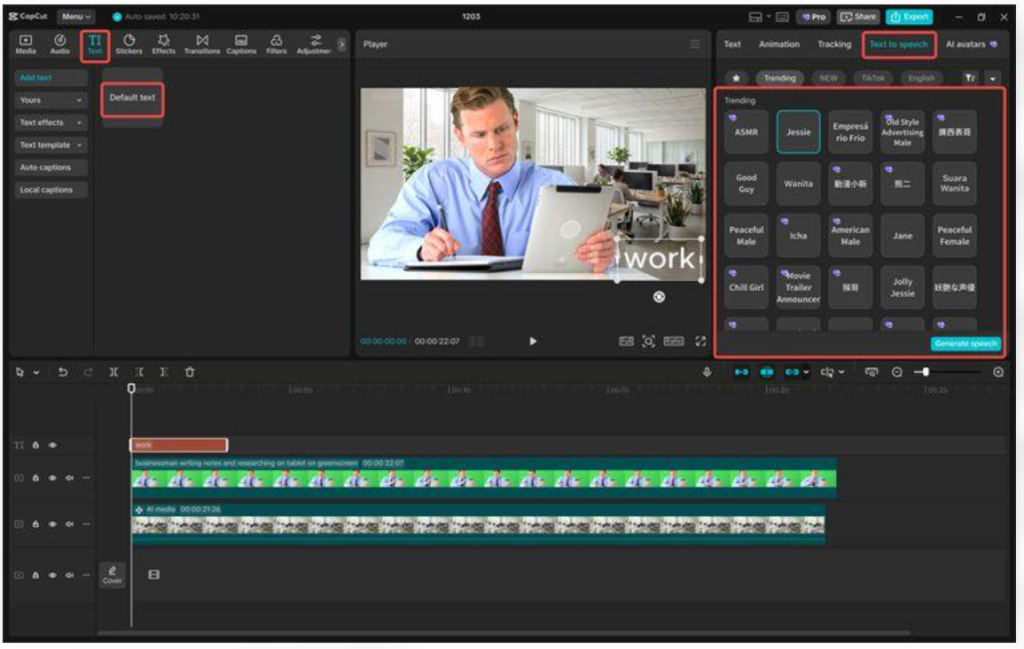
1. CapCut Text-to-Speech
CapCut is worth considering if you want to generate narration and edit a video within a related workflow.
Its text-to-speech feature can convert written text into speech using available voices and languages.
Best for: Beginners who create tutorials, short videos, and social media content.
How to try it:
- Open the official CapCut text-to-speech page.
- Access the feature available for your device or account.
- Enter a short script.
- Select an available voice and language.
- Generate and preview the narration.
- Add the audio to your video project if supported by your version.
What to check: Confirm whether your preferred voice, download option, and editing features are available without payment. Also check the applicable terms for commercial use.
Do not assume that every sound, music track, template, or other asset inside an editing application has the same licence.
2. Canva AI Voice Generator
Canva can be useful when your video relies on presentation slides, diagrams, or other visual explanations.
Its AI voice features can help creators prepare narration for educational and explainer content.
Best for: Presentation-based tutorials and visual learning materials.
How to try it:
- Visit the official Canva AI voice generator page.
- Sign in if required.
- Enter your narration text.
- Choose from the voices and languages available to your account.
- Generate and listen to the result.
- Combine the narration with your presentation or video workflow where supported.
What to check: Features and usage limits may depend on the current plan, integration, and account availability. Verify the actual terms for the generated audio and any additional assets you use.
3. ElevenLabs Text to Speech
ElevenLabs is another option to test when natural-sounding narration is a priority. It offers text-to-speech capabilities and multiple voice options.
Best for: Comparing narration styles and testing voice quality.
How to try it:
- Open the official ElevenLabs text-to-speech page.
- Create an account if necessary.
- Enter a short sample of your script.
- Select an available voice.
- Generate and preview the narration.
- Correct any pronunciation problems before using the audio in your video.
Important licensing note: ElevenLabs states that its free plan does not include a commercial licence. Its generated audio should not be used commercially under that plan. If you intend to publish monetized content, verify that your plan and the applicable terms permit the intended use.
Which tool should you choose?
There is no universal winner. Your best option depends on the voice quality you prefer, the language you need, the editing workflow, and the applicable licence.
For a beginner, a sensible approach is to test a short sample in two or three tools before committing to one.
| Your priority | What to look for |
|---|---|
| Simple video editing | Text-to-speech integrated with your editor |
| Presentation narration | Voice generation that works with your slide workflow |
| Natural-sounding speech | Clear pronunciation and suitable voice options |
| Urdu narration | Verified Urdu support and a sample pronunciation test |
| Monetized YouTube videos | Explicit permission for the intended commercial use |
Do not choose a tool based only on the word “free.” Check whether the features you need are actually available and whether the resulting audio can legally be used in your project.
How to Create AI Voiceovers for YouTube Videos for Free
Follow these steps to turn a written script into narration for a complete tutorial.
Step 1: Choose a specific video topic
Begin with a topic that answers a clear question.
For example, instead of creating a general video about artificial intelligence, you could make a tutorial titled “How to Create a Presentation Using AI.”
A specific topic helps you decide what to explain, what to demonstrate, and which visuals the audience needs.
Before writing the script, consider what viewers should be able to do after watching the video.
Step 2: Write a script that sounds natural
A voice generator can only work with the text you provide. If the script is confusing, repetitive, or unnecessarily complicated, the narration may be difficult to follow.
Use short sentences and explain technical terms in simple language.
For example:
Less conversational: “Artificial intelligence-powered text-to-speech technology facilitates the generation of narrated digital content.”
More conversational: “AI text-to-speech tools turn your written words into spoken audio.”
The second example is easier to understand and generally more suitable for narration.
A simple tutorial script can follow this structure:
- Introduction: Explain what viewers will learn.
- Main section: Demonstrate the steps in order.
- Example: Show how the process works.
- Conclusion: Summarize the result and mention any important limitations.
Write the script yourself or use AI to help prepare a draft, but review it for accuracy and originality before generating the audio.
Step 3: Test the voice before generating everything
Do not paste a very long script into a voice generator immediately.
Start with a short paragraph that contains ordinary sentences, numbers, punctuation, and any technical terms you expect to use.
Listen for:
- Correct pronunciation
- Natural pauses
- Consistent volume
- Clear word endings
- Appropriate speaking speed
If you are creating an Urdu voiceover, include several complete Urdu sentences in the test. Some tools may support a language but still pronounce particular words or mixed Urdu-English phrases poorly.
Test the actual output rather than relying only on the language listed in a tool’s menu.
Step 4: Generate the narration in manageable sections
Once you have selected a suitable voice, generate the complete script.
If your tool has a character limit, divide the script into sections. For example, create separate clips for the introduction, the main instructions, and the conclusion.
This also makes editing easier. If one sentence sounds wrong, you can correct that section without regenerating the entire recording.
Save the final audio files with descriptive names so you can identify them easily during video editing.
Step 5: Improve pronunciation and pacing
Generated narration may contain mistakes, even when the script is accurate.
If a tool mispronounces a name or abbreviation, try rewriting the word in a form that encourages correct pronunciation. If the sentence sounds rushed, shorten it or adjust the punctuation.
Make changes carefully and listen to the result again.
Avoid speeding up the voice excessively just to make a video shorter. Viewers need enough time to understand the explanation, especially when the video demonstrates software steps.
Step 6: Add the narration to your video
Import the generated audio into your video editor.
Then add visuals that support the explanation. For a software tutorial, record your screen while performing the actual steps. For an educational video, use relevant diagrams, illustrations, or clearly labelled examples.
Synchronize the visuals with the spoken instructions.
For example, when the narration says “Select your preferred voice,” show the relevant part of the tool interface rather than an unrelated stock image.
If you use background music, keep it low enough that the narration remains clear. Add captions where practical to help viewers who watch without sound.
Step 7: Review and export the final video
Watch the entire video before publishing it.
Check the narration, timing, captions, visual accuracy, and sound levels. Make sure the video delivers the information promised in its title.
Also verify that you have permission to use the music, images, screen recordings, and other assets included in the project.
Export the video using settings appropriate for your intended YouTube format.
Practical Example: Creating a Short AI Voiceover
Suppose you want to make a tutorial explaining how AI voice generation works.
You could start with this original sample script:
“Welcome to this tutorial. Today, we will learn how to turn written text into spoken audio using an AI voice generator. First, prepare a short script. Next, choose a suitable voice and generate the narration. Listen carefully, correct any pronunciation mistakes, and add the final audio to your video. Always check the tool’s usage terms before publishing your project.”
Now follow this process:
- Paste the script into your chosen text-to-speech tool.
- Generate a voice sample.
- Listen for unnatural pauses or incorrect pronunciation.
- Correct the text and regenerate the necessary sections.
- Record a screen demonstration of the process.
- Synchronize the narration with the screen recording.
- Add captions and review the completed video.
This small experiment lets you compare tools without spending time preparing a long video first.
You can also use the same test script across multiple tools to compare their results more fairly.
How to Make AI Voiceovers Sound More Natural
A realistic voice is useful, but clarity and presentation are just as important.
Use conversational language
Write the way a person would explain the topic to another person. Avoid unnecessarily long sentences, repeated phrases, and complicated wording.
Add pauses where needed
Punctuation can help organize spoken sentences. If a voice generator supports pause controls, use them where the explanation needs breathing room.
Check names and technical terms
Names, acronyms, numbers, and borrowed words can be difficult for some voices to pronounce. Listen to these sections carefully and correct mistakes before publication.
Match the narration to the visuals
When the audio explains a particular step, show that step on screen. This makes the tutorial more useful than simply placing narration over unrelated footage.
Keep audio levels consistent
If you generate several clips separately, listen for changes in loudness or speaking speed. Adjust them in your editor so the narration feels consistent.
Use captions carefully
Automatically generated captions may contain errors. Review spelling, punctuation, and timing before publishing them.
Can You Use AI Voiceovers for Monetized YouTube Videos?
AI-generated narration does not automatically make a video ineligible for YouTube monetization. However, using an AI voice does not guarantee monetization either.
YouTube’s monetization policies emphasize original, authentic content that offers viewers meaningful value. Mass-produced videos, repetitive material, and reused content with little meaningful contribution can create monetization problems. See the official YouTube channel monetization policies.
To create more useful videos:
- Write original scripts that answer real questions.
- Demonstrate the process instead of merely describing it.
- Add explanations, examples, and your own editorial judgment.
- Check facts before publishing educational content.
- Use visuals that directly support the narration.
- Avoid publishing large numbers of nearly identical videos.
The objective should be to help viewers solve a problem, not simply to generate videos as quickly as possible.
Understand the difference between free access and commercial permission
A tool may allow you to generate audio without charging you, but that does not necessarily grant permission to use it commercially.
Before publishing a video intended for monetization, check the terms for the specific plan and feature you used. Also verify the rights for any music, images, or other assets included in your video.
For example, ElevenLabs explicitly excludes commercial licensing from its free plan. Other providers may apply different conditions, so review their current documentation rather than assuming that all free tools have identical rules.
Common AI Voiceover Mistakes and Their Solutions
Mistake 1: Generating a long narration without testing the voice.
Solution: Test a short sample first and check pronunciation, pacing, and clarity.
Mistake 2: Using an unedited AI-written script.
Solution: Review the script for factual errors, repetition, awkward wording, and unsupported claims.
Mistake 3: Assuming every free voice is suitable for commercial use.
Solution: Check the applicable licence and commercial-use conditions before publishing.
Mistake 4: Adding unrelated visuals.
Solution: Use screen recordings, diagrams, and images that directly illustrate the narration.
Mistake 5: Ignoring captions and audio quality.
Solution: Review captions, synchronization, and sound levels before exporting the video.
Mistake 6: Publishing repetitive videos with little original value.
Solution: Give every video a distinct purpose, meaningful explanation, and useful examples.
Frequently Asked Questions
1. Can I create AI voiceovers for YouTube videos for free?
Yes. Some services offer free text-to-speech features or limited free usage. The available voices, generation limits, download options, and permissions depend on the provider and plan.
2. Which AI voiceover tool is best for beginners?
CapCut is worth testing if you want narration alongside video editing. Canva may suit presentation-based tutorials, while ElevenLabs is another option for comparing voice quality. Your best choice depends on your needs and licence requirements.
3. Can I create AI voiceovers in Urdu?
Some tools offer Urdu support or related language options. Availability and pronunciation quality vary, so generate a short Urdu sample and listen carefully before preparing a complete video.
4. Do I need a microphone to generate AI voiceovers?
No. Text-to-speech tools can generate spoken audio from written text without a microphone. A microphone is only necessary if you also want to record your own voice.
5. Can I use AI voiceovers in YouTube Shorts?
Yes, provided the generated audio and other assets are permitted for your intended use. Keep the narration concise, make the visuals relevant, and ensure the finished video delivers useful information.
6. Can I monetize videos that use AI-generated voices?
Potentially, yes. AI narration alone does not determine monetization eligibility. Your content must comply with YouTube’s current policies, provide sufficient original value, and use assets you have the necessary rights to publish.
7. Is AI-generated audio copyright-free?
Not automatically. The applicable rights and restrictions depend on the provider, plan, terms, and content involved. Check the licence before using generated audio commercially.
8. How can I make AI narration sound more human?
Use conversational sentences, test different voices, correct pronunciation, and adjust pauses and speaking speed. Review the entire narration rather than relying on the initial generated output.
9. Should I disclose AI-generated narration?
Consider the context and applicable platform requirements. YouTube requires disclosure for certain realistic altered or synthetic content, particularly where viewers could be misled about real people or events. Ordinary synthetic narration does not automatically require the same disclosure in every situation; check YouTube’s current guidance for your specific video.
Final Thoughts
AI voiceover tools can simplify video production by converting a written script into spoken narration. They are especially useful for beginners who want to create tutorials without recording their own voice.
Start with a short script, compare a few available voices, and choose the tool that suits your language and editing workflow. Correct pronunciation mistakes, match the narration to relevant visuals, and verify the licence before publishing.
Most importantly, focus on creating original and genuinely useful videos. AI can help with production, but thoughtful explanations, accurate information, and careful editing are what make a tutorial worth watching.
For more practical AI tutorials and step-by-step technology guides, explore vidsweb.online.